
For years, Chrome was just a browser with too many tabs. If you wanted better organization, AI help, or automation, you had to jump between multiple tools like Arc, ChatGPT, and Notion.
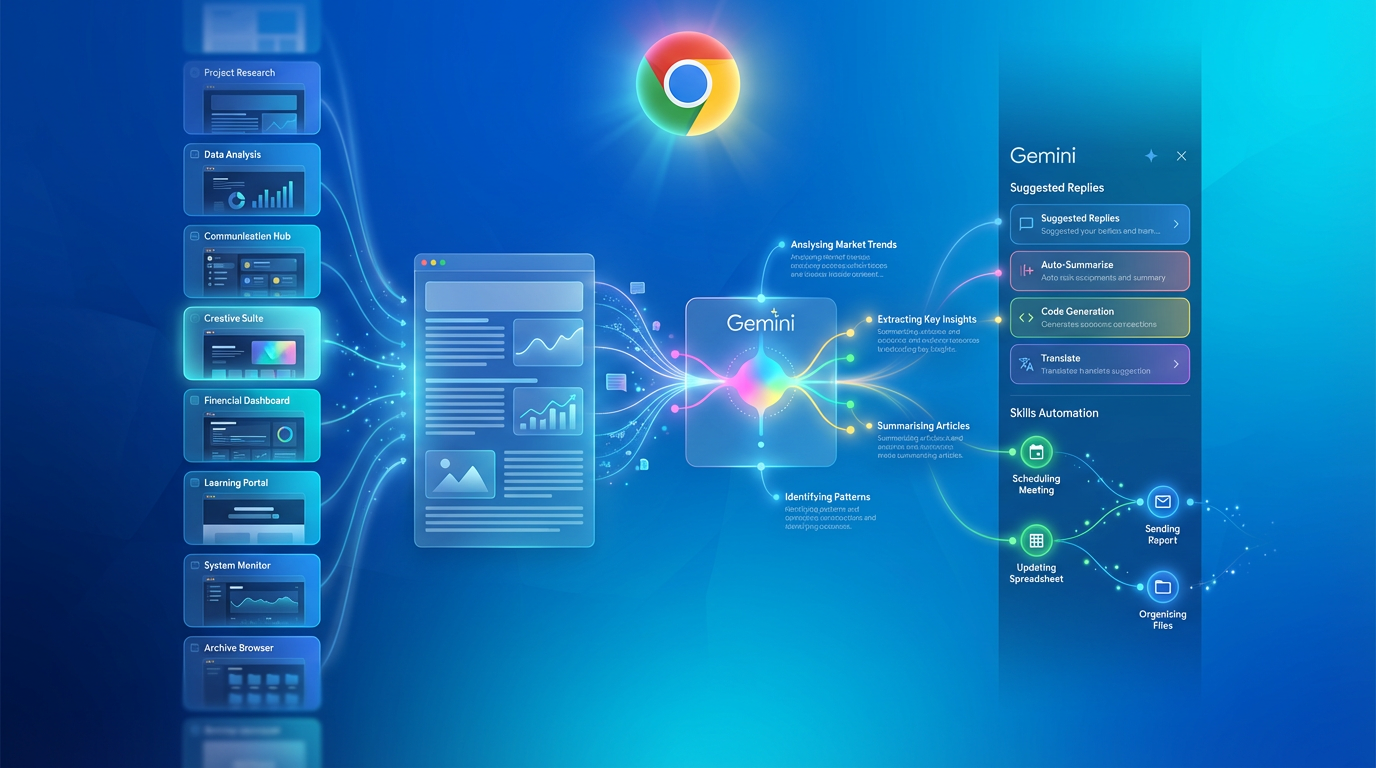
- Vertical Tabs improved visibility for users managing 20+ open pages.
- AI Skills automated repetitive prompts like summarization and data extraction.
- Gemini Sidebar provided real-time analysis of active webpage content.
- Setup Time: Approximately 5 minutes.
- Cost: Free (Built-in).
Google quietly changed that by adding three powerful productivity features directly into Chrome. Once enabled, they turn your regular browser into a much smarter workspace.
The Three Features Worth Enabling
1. Vertical Tabs
Transform the top tab bar into a clean left sidebar so you can see 15–20 tabs with full titles at once.
2. Skills (One-Click AI Actions)
Genuine News Deserves Honest Attention.
High-conviction projects require an intelligent audience. Connect with readers who value sharp reporting.
👉 Submit Your PRSave your favorite prompts as Skills and trigger them instantly with a simple /.
3. Gemini Sidebar
A persistent AI assistant on the right that can actually see and understand the page (or multiple tabs) you’re viewing.
How to Enable All Three Features (5–7 minutes total)
Step 1: Enable Vertical Tabs (2 minutes)
- Type chrome://flags in the address bar and press Enter.
- Search for “vertical tabs”.
- Change from Default to Enabled.
- Click the blue Relaunch button.
- Right-click the tab bar → select “Show tabs vertically”.
Tip: Drag the right edge of the sidebar to adjust its width.
Step 2: Enable Gemini Skills (2 minutes)
- Go back to chrome://flags.
- Search for “skills”.
- Set to Enabled and relaunch.
- Click the Gemini icon → type / in the sidebar to see available Skills.
Step 3: Activate the Gemini Sidebar (1 minute)
- Click the Gemini icon in the top right.
- Select “Open in side panel”.
- Start asking questions about the current page.
Real-World Use Cases
- Research Projects: Academics and analysts keep 50+ source tabs open in the vertical sidebar while using the Gemini sidebar to compare data points across different studies.
- Job Hunting: Applicants run the “Extract” Skill on job descriptions to pull out key requirements in seconds instead of reading manually.
- Comparison Shopping: Open multiple product pages, then ask Gemini to “Create a table comparing the prices and specs of all open tabs.”
Troubleshooting / Common Issues
- Flag not appearing: Make sure you’re on Chrome 146 or newer. Go to Help → About Google Chrome to check for updates.
- Skills menu is empty: This feature is still rolling out by region. Try updating Chrome, waiting 24 hours, or signing into a Google account.
- Sidebar won’t stay open: Click the pin icon at the top of the Gemini sidebar to keep it locked in place.
Advanced Tips
- Custom Width: Hover over the edge of the vertical tab sidebar and drag to make it wider or narrower.
- Keyboard Shortcuts: Press Ctrl + Shift + Y (Windows/Linux) or Cmd + Shift + Y (Mac) to quickly toggle the side panel.
You don’t need another fancy AI browser. With these three features enabled, regular Chrome becomes surprisingly powerful and efficient.It’s one of the highest-return tweaks you can make in 2026.
Activate Intelligence Layer
Institutional-grade structural analysis for this article.